IPTV Not Working on Firestick? Complete Fix Guide (2026)
The Amazon Firestick has become one of the most popular devices for streaming IPTV thanks to its affordability, portability, and powerful performance. Whether you're watching live TV, sports, or movies, it offers a smooth experience when everything is properly configured.
However, like any streaming device, the Firestick is not immune to issues. Many users report problems such as apps crashing, black screens, login errors, or constant buffering. These issues can be frustrating, especially when you just want to relax and watch your favorite content.
The good news is that most IPTV problems on Firestick are not serious. In fact, they can usually be fixed in just a few minutes if you follow the right steps.
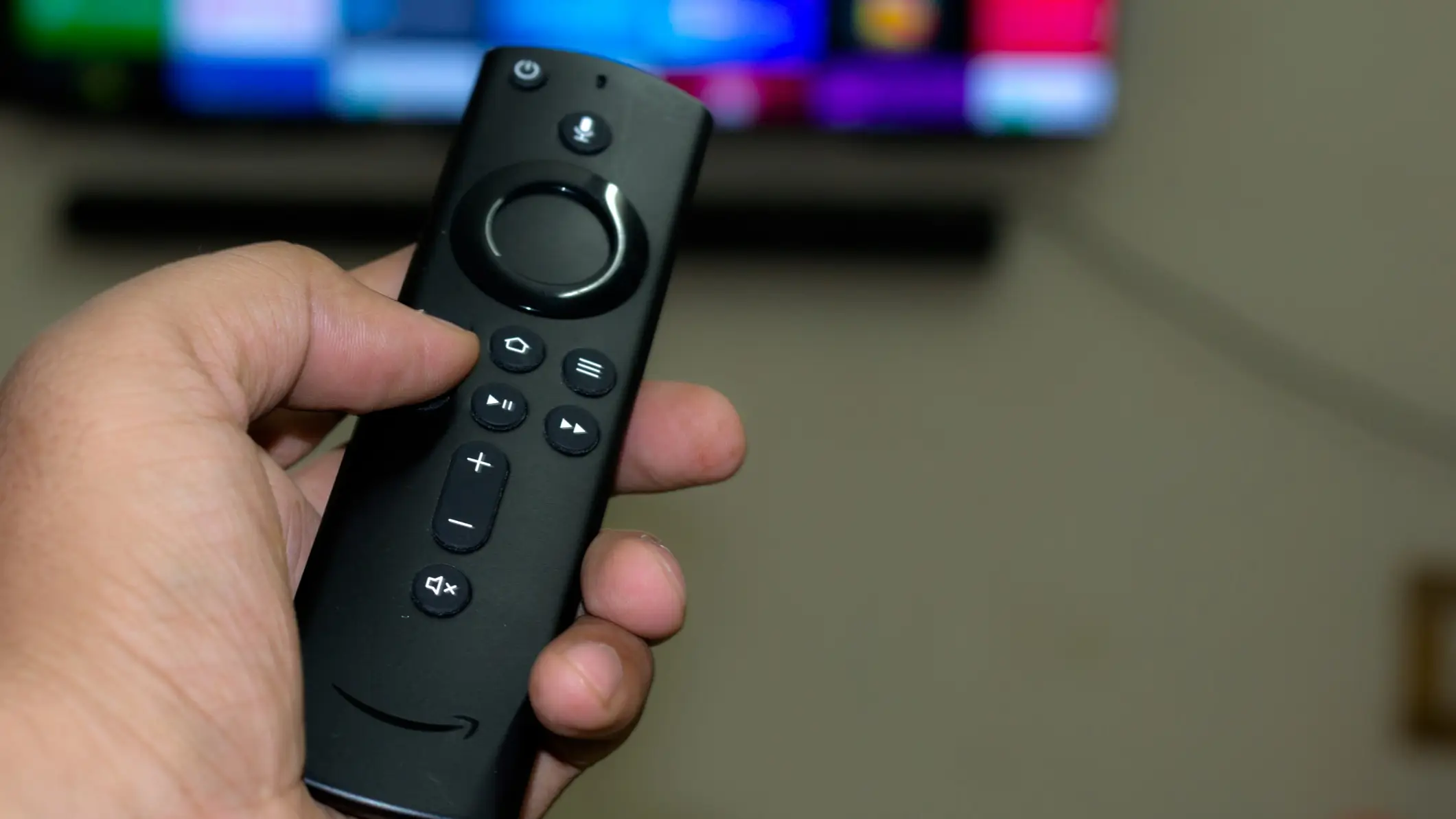
Common IPTV Problems on Firestick
- IPTV app not opening or crashing
- Black screen after launching a channel
- Login not working even with correct credentials
- Constant buffering or freezing
- Channels not loading
- App stuck on loading screen
Why IPTV Stops Working on Firestick
Understanding the cause helps you fix the issue faster. Here are the main reasons:
App Cache Overload: Over time, apps store temporary files that can slow down or crash the application.
Outdated Applications: Using an old version of an IPTV app can cause bugs or compatibility issues.
Weak Internet Connection: IPTV requires a stable connection, and interruptions can lead to buffering.
Device Overload: Too many apps running in the background can reduce performance.
Server Issues: Sometimes the IPTV server is temporarily down or overloaded.
Step-by-Step Fix Guide
Step 1: Restart Your Firestick
Unplug your Firestick from power, wait 30 seconds, then plug it back in. This simple action clears temporary bugs and refreshes the system.
Step 2: Clear App Cache and Data
Go to Settings → Applications → Manage Installed Applications, select your IPTV app, then click Clear Cache and Clear Data to remove corrupted files.
Step 3: Reinstall the IPTV App
Uninstall the app, restart your Firestick, and install the latest version to ensure everything works correctly.
Step 4: Check Your Internet Connection
Make sure your internet speed is stable. For best results, use Ethernet instead of WiFi and restart your router if needed.
Step 5: Update Your Firestick
Go to Settings → My Fire TV → About → Check for Updates and install the latest system version.
Advanced Fixes
Use Another IPTV App: Some apps like Ibo Player, TiviMate, or Smart IPTV perform better on Firestick.
Use a VPN: A VPN can improve stability if your internet provider limits your streaming speed.
Reduce Streaming Quality: Switching from 4K to HD can help reduce buffering.
Close Background Apps: Free up system resources by closing unused apps.
Best Practices
- Keep your apps updated
- Use a stable internet connection
- Restart your Firestick regularly
- Avoid installing unnecessary apps
Conclusion
IPTV not working on Firestick can be frustrating, but in most cases, the solution is simple. Whether it’s clearing cache, reinstalling the app, or improving your internet connection, these fixes can get you back to streaming in minutes.
Once properly configured, the Firestick becomes one of the best devices for IPTV, offering a fast and reliable streaming experience.
Start Watching Now